Home » About » How to Add Our Apps to Your Devices
How to Add Our Apps to Your Devices

Did you know you can add All About Jazz, Jazz Near You, and The Jazz Scroll to your phone, tablet, or computer, just like your other apps?
It's free, takes less than a minute, and there's nothing to download from the Apple App Store or Google Play. Once installed, simply tap or click an app's icon to open it whenever you like.
Worried about storage space? Our apps are Progressive Web Apps (PWAs), which use much less storage space than traditional apps.
Choose your favorite—or install all three!
iPhone (Safari)
- Open All About Jazz, Jazz Near You, or The Jazz Scroll in Safari.
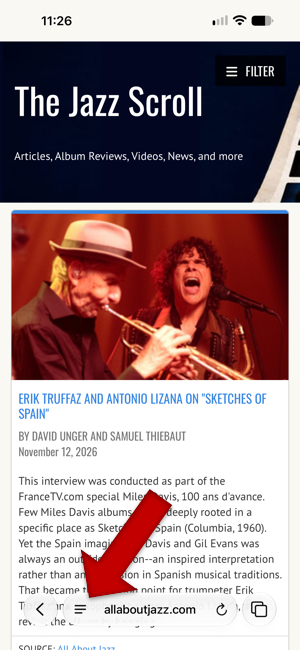
- Tap the menu button (••• or ☰, depending on your iPhone), then tap Share.
- Select Add to Home Screen, then tap Add.
- Open All About Jazz, Jazz Near You, or The Jazz Scroll in Chrome.
- Tap the three-dot menu and select Add to Home screen or Install app.
- Tap Install or Add to confirm.
- Open All About Jazz, Jazz Near You, or The Jazz Scroll in Chrome or Edge.
- Click the install icon in the address bar, if available.
- Click Install to confirm.
Android (Chrome)
Computer (Chrome or Edge)
All done
Your favorite jazz apps are now just a tap or click away. No need to type in the website address each time.
Want all three? Simply repeat the process for each app.
iPhone Screenshot of menu button